
Before you invoice
Before you upload your first invoice, you need to log into your vendor profile and make sure that you have filled out all the information necessary for the payment to be made. Make sure that you have:
- Chosen a payment method.
- Filled out your sort code, your account number, bank name, IBAN and SWIFT. This information is not mandatory for every country, so if your country does not use sort codes, account numbers or IBAN, you can disregard them. Please note that we can not pay you by PayPal.
- Informed Semantix of your VAT number, if you have one, and your organization number or EID if you do not have one. You can do this by sending an e-mail to vendor.management@semantix.eu. If any changes are made to your VAT number, please contact Vendor Management.
How to invoice
You will receive a job specification on the morning of the last working day of each month. This specification will contain all jobs you have delivered during the month, and will also be sent in an e-mail with the subject “A new job specification is now available in Semantix Translations’ vendor portal”.
Once you have received the specification, you can upload your invoice in the portal. Please note that jobs completed after 17:00 (GMT+1) on the second last day of each month will not be included in the job specification until the next month. Which Semantix company branch to invoice will be stated in each specification.
There are three things to remember when invoicing:
- The invoice must match the job specification exactly regarding sum total, Semantix company branch name and corresponding VAT number.
- Your complete bank information should be registered in the system and on your invoice.
- The invoice must be in PDF format. Invoices in Excel or Word will be rejected by the system.
Please also note that invoicing directly via the job tab in XTRF is not allowed.
To invoice, please follow these steps:
- Log in to Semantix Translations’ vendor portal.
- Go to the tab Invoices and click Add invoice upon specification to view your job specification.
- Check that the total for each job listed is what you expect it to be. You can also download the specification as a PDF by clicking on the underlined number at the top in the blue box.
- Check that the Subtotal, VAT, and Total values are correct based on the ordering Semantix company.
- If any value seems incorrect, please contact the project manager in question and await a revised job specification.
- Otherwise, create your invoice in the way you usually do, and make sure to save it as a PDF for step 8. If you want to, you can use our invoice template.
- In Semantix Translations’ vendor portal, enter the Invoice No. and Invoice Date of the invoice you just created; please note that the invoice date must be the date of uploading, not earlier. It is not possible to upload the invoice before the invoice date.
- Click Select file to upload your invoice as a PDF. Note that the invoice must be PDF format, otherwise it will get stuck in the system and not passed on for payment.
- Click Add Invoice.
One or more job specifications
You can receive one or more job specifications, depending on how many Semantix branches you have received projects from during the past month.
Semantix consists of several legal entities – branches – based in the Nordic countries. They are:
Semantix legal entity (branch) | Project numbers’ first two digits |
Semantix Språkcentrum AB | 73 and 75 |
Semantix Finland Oy | 76 |
Semantix AS | 70 |
Semantix Translations Norway AS | 71 |
Semantix A/S | 77 and 78 |
You can identify the Semantix branch by the project numbers’ first two digits (indicated in the list above).
Invoicing projects from two or more Semantix branches on the same invoice is not possible. Hence, double-checking your job specification is very important (see sender address in image below).
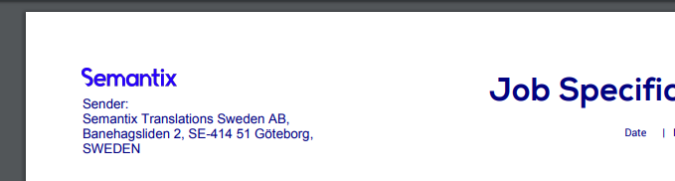
If you have delivered a project for only one Semantix branch during the past month, you will only have to upload one invoice. If you have delivered projects for two or more Semantix branches, you will need to upload two or more invoices.
